AI tools are everywhere right now.
But here’s the honest truth: most of them still feel temporary.
You open a chat window. You ask a question. You get an answer. And then the next day? It remembers nothing. No context. No habits. No continuity.
That’s exactly the gap Kimi Claw is trying to solve.
Built around OpenClaw, Kimi Claw isn’t just another chatbot. It’s designed to be a persistent AI assistant that can remember rules, follow structured workflows, run scheduled tasks, and even connect to platforms like Telegram.
If you’ve ever wanted an AI assistant that feels less like a Q&A bot and more like a long-term digital teammate, this guide is for you.
What Is Kimi Claw?
At its core, Kimi Claw is a cloud-hosted AI assistant built on OpenClaw that allows you to:
- Customize its personality and response format
- Install modular “Skills”
- Set recurring tasks and reminders
- Connect it to external channels like Telegram
- Use it across web and mobile
Unlike standard AI chatbots, Kimi Claw is designed for continuity. You configure it once, and it keeps operating within those rules.
Think of it as:
- Part AI chatbot
- Part automation tool
- Part productivity assistant
Now let’s walk through how to actually use it.
How to Deploy Kimi Claw (The Easy Way)
One of the biggest advantages of Kimi Claw is that you don’t need to install servers or write command-line scripts.
Option 1: One-Click Deployment (Recommended for Beginners)
If you don’t already have OpenClaw deployed:
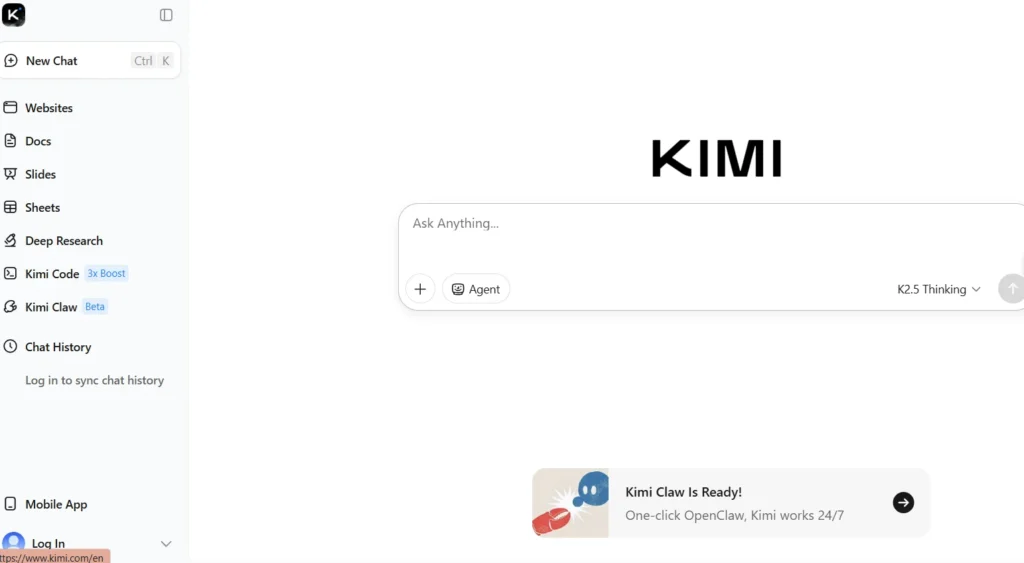
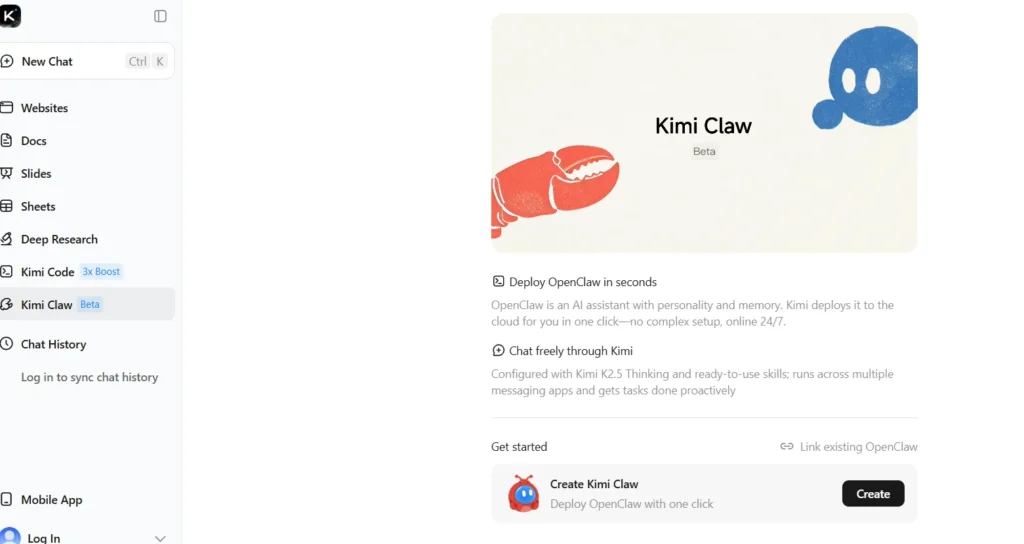
- Go to the Create Kimi Claw page.
- Choose one-click deployment.
- Kimi automatically:
- Deploys OpenClaw in the cloud
- Configures the Kimi model backend
- Connects your membership quota
- Enables web search
No API keys. No server hosting. No Docker setup.
If you’ve used tools like Auto-GPT, you know how complex AI agent deployment can get. Kimi Claw removes that friction entirely.
That’s huge for non-technical users.
Option 2: Link an Existing OpenClaw
Already running OpenClaw somewhere else?
You can:
- Go to Kimi Claw page
- Select “Link existing OpenClaw”
- Install the Kimi plugin on your device
- Complete pairing
This method is better for advanced users who already manage their own infrastructure.
Customize Kimi Claw’s Personality (This Is Where It Gets Powerful)
Most people make a mistake here.
They treat Kimi Claw like a regular chatbot.
But its real strength lies in customization.
You can define:
- Name and identity
- Role (analyst, tutor, product manager, etc.)
- Tone and speaking style
- Mandatory opening/closing lines
- Required structure
Example: Turning It Into a Research Analyst
You can say:
“From now on, you are a rigorous investment research analyst. Structure responses as: Conclusion → Reasons → Risks. Mark uncertainty clearly.”
Now every response follows that format.
That consistency is extremely useful if you:
- Do stock research
- Write reports
- Analyze competitors
- Create structured content
Instead of re-prompting every time, you configure once and build long-term behavior.
Pro Tip: Create Role-Based Assistants
Here’s how professionals use it:
- “Marketing Strategist Mode”
- “Daily Productivity Coach”
- “Research Assistant”
- “Content Editor”
- “Study Buddy”
Switching roles gives your AI assistant a defined personality and logic system.
It feels surprisingly powerful.
Install Skills from the Clawhub Skill Library
One of the most interesting features is the Skill Library.
Think of Skills as mini-modules you can install.
Instead of teaching your assistant from scratch, you can ask it to:
- Find a competitor analysis Skill
- Install a market research Skill
- Add news summary capabilities
- Load data analysis frameworks
How to Install a Skill
Just say something like:
“Find and install a Skill for competitor analysis. Then ask me what company we’re analyzing.”
It will:
- Search the Skill library
- Install the module
- Guide you step-by-step
This makes Kimi Claw more like a modular AI system instead of a simple prompt engine.
When Skills Are Most Useful
Skills are helpful if you:
- Run recurring business analyses
- Track markets
- Write structured reports
- Need standardized output
If you’re a casual user, you may not need them.
But if you’re a founder, marketer, analyst, or student? They save time.
Teach Kimi Claw Your Own Workflow
Here’s where advanced users unlock serious value.
You can train Kimi Claw on your own processes.
For example:
- Your content writing workflow
- Your stock screening method
- Your project management structure
- Your meeting summary template
Teach It in 3 Steps:
- Explain your process
- Define your standards
- Provide output format template
Example:
“When writing blog outlines, first analyze search intent. Then list 10 H2 headings. Each must include a primary keyword. Keep paragraphs under 120 words.”
Now it follows your system every time.
This is how you turn AI into a repeatable workflow assistant.
Set Scheduled Tasks (Turn It Into a Daily Operator)
This is one of the most underrated features.
Kimi Claw can run scheduled tasks automatically.
To make it reliable, always include:
- Time
- Output format
- Constraints
Example 1: Daily Market Summary
“Every day at 9:00 AM, summarize the latest US tech news. 3 bullet points. Include 1 risk note. Under 200 words.”
Now it acts like your personal news analyst.
Example 2: Habit Reminder
“Every weekday at 10 PM, remind me to shut down my computer and prepare for sleep. Use a calm tone.”
It becomes a habit coach.
Example 3: Work Follow-Up
“Tomorrow at 3 PM, remind me to follow up on client proposal and include a short checklist.”
Now it supports accountability.
Why This Matters
Traditional automation tools like Zapier require structured triggers.
Kimi Claw can reason before delivering output.
That adds intelligence — but also means you should test consistency before relying on high-stakes tasks.
Connect Kimi Claw to Telegram
If you want to access it outside the web app, you can configure a Telegram bot.
How to Set It Up
- Open Telegram
- Search for @BotFather
- Create a new bot using /newbot
- Copy the bot token
- Give the token to Kimi Claw
- Restart Kimi Claw
- Approve pairing
Now your assistant lives inside Telegram.
You can:
- Use it in private chat
- Add it to group chats
- Tag it for responses
This is especially useful for:
- Startup teams
- Research groups
- Study groups
- Remote teams
Just note: file sending back is still limited for now.
Real-Life Use Cases
Let’s make this practical.
For Founders
- Daily competitor updates
- Weekly growth analysis
- Product feedback summaries
- Habit accountability
For Content Creators
- Outline generation
- SEO structure drafting
- Content calendar reminders
- Research summaries
For Students
- Daily study plans
- Exam revision reminders
- Structured explanations
- Learning progress tracking
For Investors
- Market briefings
- Risk summaries
- Sector comparisons
- Daily alerts
Common Mistakes to Avoid
- Treating it like a basic chatbot
- Not defining structured output rules
- Setting vague scheduled tasks
- Forgetting constraints
- Ignoring testing before automation
The more precise you are, the better it performs.
Security and Limitations You Should Know
Kimi Claw:
- Doesn’t currently support full terminal control
- Can receive files but cannot send them back yet
- Depends on membership plans
- Is not a replacement for enterprise compliance systems
It’s best suited for productivity, research, and workflow support — not mission-critical automation.
Is Kimi Claw Worth Using?
If you only need a question-answer chatbot, there are many alternatives.
But if you want:
- A persistent assistant
- Customizable behavior
- Modular skill expansion
- Scheduled reasoning tasks
- Telegram integration
Kimi Claw offers a unique hybrid.
It sits between a chatbot and an automation engine.
And for many professionals, that’s exactly the sweet spot.
Conclusion
We’re entering a new phase of AI tools.
It’s no longer just about smart responses.
It’s about continuity, automation, and workflow integration.
Kimi Claw isn’t perfect. But it’s pushing toward something more sustainable: an AI assistant that stays with you, adapts to your processes, and works on schedule.
If you’re serious about building a 24/7 AI productivity partner — not just asking random questions — it’s absolutely worth exploring.
And once you configure it properly, it stops feeling like software.
It starts feeling like a teammate.
Frequently Asked Questions (FAQ)
What is Kimi Claw used for?
Kimi Claw is used to build a customizable AI assistant that can remember rules, install Skills, run scheduled tasks, and integrate with platforms like Telegram.
Do I need coding knowledge to use Kimi Claw?
No. One-click deployment allows non-technical users to start without servers or command-line setup.
Can Kimi Claw automate daily tasks?
Yes. You can set recurring scheduled tasks with defined output formats and constraints.
Is Kimi Claw better than ChatGPT?
It depends on your needs. ChatGPT is stronger as a general-purpose assistant. Kimi Claw is better for persistent workflows and automation-style tasks.
Can Kimi Claw send files back to me?
Currently, it can receive files but does not fully support sending files back through the main interface.
Is Kimi Claw available on mobile?
Yes. It’s available via web and mobile apps.
Also Read..
What Is Google Stitch? Google Introduces Design Systems to Its AI UI Builder
OpenClaw 2026.2.12 Expands AI Agents With GLM-5 and MiniMax M2.5